
Uniwind vs NativeWind: A Practical Expo Migration Guide
Muhammad Kamran
Moving a React Native app from NativeWind to Uniwind looks simple until the first screen changes size, a modal loses its theme, or a third-party component ignores className. The JSX can look familiar while the styling setup underneath it changes.
This guide explains when Uniwind is worth evaluating and how to approach an Expo migration without mixing it with a framework upgrade. It covers the standard Uniwind package; Pro has a separate native setup.
Uniwind vs NativeWind: what are you comparing?
Both let you write Tailwind-style utility classes in React Native. The version matters: Uniwind requires Tailwind CSS 4. NativeWind's stable v4 documentation uses Tailwind CSS 3, while its v5 documentation currently describes a prerelease based on Tailwind CSS 4. Comparing Uniwind with an unspecified “NativeWind” can hide that difference. Check the Uniwind quickstart, NativeWind v4 setup, and NativeWind v5 release status against your lockfile before making a decision.
My recommendation: evaluate Uniwind when you want a CSS-first Tailwind 4 workflow or have a specific styling problem to solve. If your current screens are stable and you cannot identify a benefit, staying on your existing setup is a reasonable choice. A new dependency should earn the migration work.
A familiar API also does not establish a performance improvement for your app. Measure your own representative screens before putting a speed claim in a release note.
Start with one screen and a baseline
Choose a screen containing text, an input, a button, and a modal or bottom sheet. Capture it in light and dark mode on both platforms. Record the installed versions and keep the existing lockfile in version control:
npm ls expo react-native nativewind uniwind tailwindcssMake the styling migration in its own branch. Keep the Expo SDK and React Native versions unchanged for this experiment. If compatibility requires a framework upgrade, finish and verify that upgrade first. This makes a regression easier to trace.
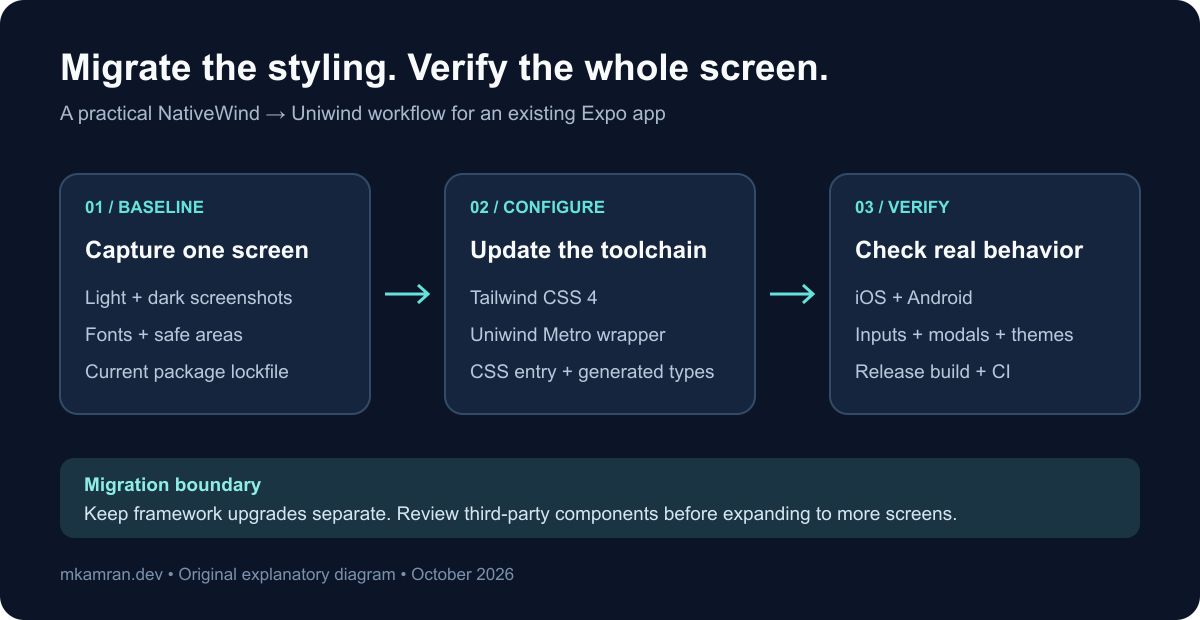
Original migration checklist: baseline one screen, change the styling configuration, then verify the complete user flow.
Set up Uniwind in an Expo project
1. Install the styling packages
For an existing Expo project, install Uniwind and Tailwind CSS 4:
npm install uniwind tailwindcss@^4After checking that nothing else needs it, remove the old nativewind dependency. Keep Reanimated and safe-area dependencies if your app uses them elsewhere. Dependency cleanup is a separate decision from replacing the styling engine. Follow the official migration guide for your starting version.
2. Create one CSS entry file
For this example, keep global.css at the project root:
@import 'tailwindcss';
@import 'uniwind';
Import it from the main React component. In an Expo Router project whose layout is app/_layout.tsx, add import '../global.css'; to that layout and preserve its existing navigation code. If the layout lives in src/app, the relative path is ../../global.css. Avoid importing it into the JavaScript file that only registers the root component. See the entry-file guidance.
3. Update Metro and generate the types
Use your CSS file's actual relative path. Preserve other Metro customizations, with Uniwind wrapping the final configuration:
const expoMetro = require('expo/metro-config');
const uniwindMetro = require('uniwind/metro');

const appMetro = expoMetro.getDefaultConfig(__dirname);

module.exports = uniwindMetro.withUniwindConfig(appMetro, {
  cssEntryFile: './global.css',
  dtsFile: './uniwind-types.d.ts',
});
Start Metro to generate the declaration file. Ensure your TypeScript configuration includes uniwind-types.d.ts, especially if you keep it at the root. Remove old NativeWind type references, the nativewind/babel entry, and any NativeWind-specific jsxImportSource setting; retain unrelated Babel presets and plugins. Restart Metro after configuration changes:
npx expo start --clearThe Metro reference explains wrapper order, CSS paths, and generated declarations. A development server starting successfully is only the first checkpoint.
Build a small light-and-dark component
Use a simple component before migrating a whole design system:
import { Pressable, Text, View } from 'react-native';
import { Uniwind } from 'uniwind';

export function ThemePreview() {
  return (
    <View className="gap-4 rounded-2xl bg-white p-6 dark:bg-slate-900">
      <Text className="text-lg font-semibold text-slate-900 dark:text-white">
        Appearance
      </Text>
      <Pressable => Uniwind.setTheme('dark')}>
        <Text className="text-blue-600 dark:text-blue-300">Dark</Text>
      </Pressable>
      <Pressable => Uniwind.setTheme('system')}>
        <Text className="text-blue-600 dark:text-blue-300">Use device setting</Text>
      </Pressable>
    </View>
  );
}
Uniwind supplies light and dark themes and can follow the device setting. Setting an explicit theme disables that automatic choice until you select system again. Verify this by changing the device appearance while the app stays open. The theming documentation describes the behavior.
For brand tokens, define matching variables across your theme variants. If you introduce an additional named theme, register it in Metro too. See custom themes before copying a web theme configuration into your app.
Three migration pitfalls to check early
Third-party components can need an adapter
A component that accepts style does not automatically accept styling classes. Uniwind provides withUniwind for these boundaries. For example:
import { withUniwind } from 'uniwind';
import { SafeAreaView } from 'react-native-safe-area-context';

const ScreenContainer = withUniwind(SafeAreaView);
Use ScreenContainer where that wrapper is needed. Create wrappers outside render functions. Check the adapter documentation for components with custom style or color props. Existing cssInterop registrations need review.
Dynamic class fragments can disappear
Prefer complete class strings, selected by state, over expressions such as bg-${color}-600:
const badgeClasses = {
  success: 'bg-emerald-600 text-white',
  error: 'bg-red-600 text-white',
};
This keeps both options visible to Tailwind's scanner. If styles disappear only in shared components, check the scanned directories as well. An explicit @source may be needed. The Tailwind source-detection guide explains both cases.
Familiar utilities can still produce a different screen
Review typography, spacing, safe-area handling, and custom fonts against your baseline. Uniwind's documented default rem base is 16; check whether the old setup used a different value before changing every spacing class. The migration checklist covers these differences.
Native layout still has platform constraints. Check individual features against supported class names rather than assuming every browser CSS pattern transfers to a phone. For related layout checks, see my Android edge-to-edge article.
Enjoyed this article?
Check out more of my content or get in touch if you'd like to work together on your next project.